Excel → PDF, laid out right

No more fixing Excel page breaks by hand.

CrazySmartPDF re-lays out every sheet so the PDF fits the page. One workbook or a whole folder, in seconds.

Built for the people who have to send a spreadsheet as a PDF: month-end close packs, client statements, board reports, rate cards, schedules, wide data tables.

One workbook · 23 columns · 210 rows page 1 of each PDF

Excel · Save as PDF

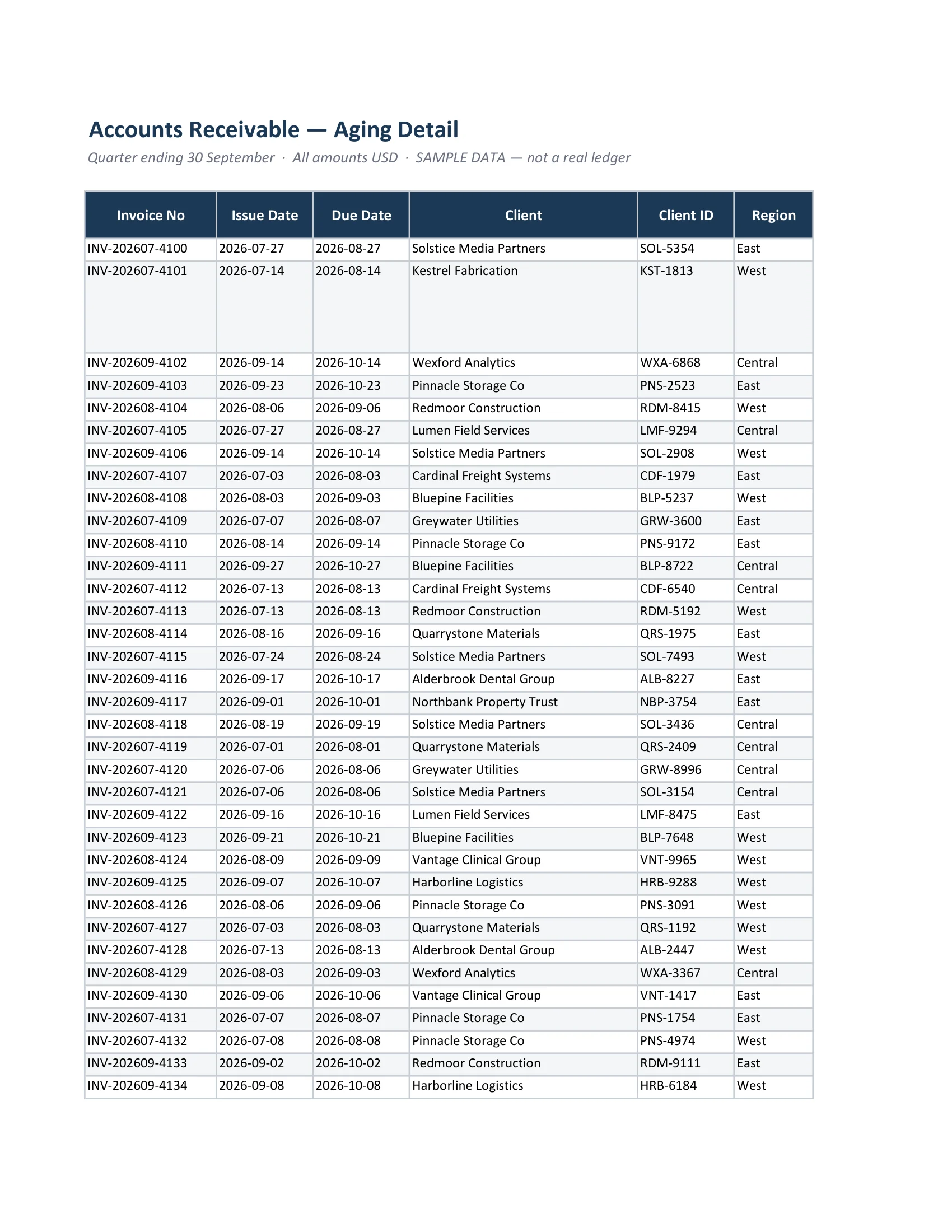
Page 1 of the PDF Excel's Save as PDF produced: a portrait page carrying only the first six of the workbook's twenty-three columns.

24 pages. 6 of 23 columns on page 1. Balance and Status land on page 19.

CrazySmartPDF

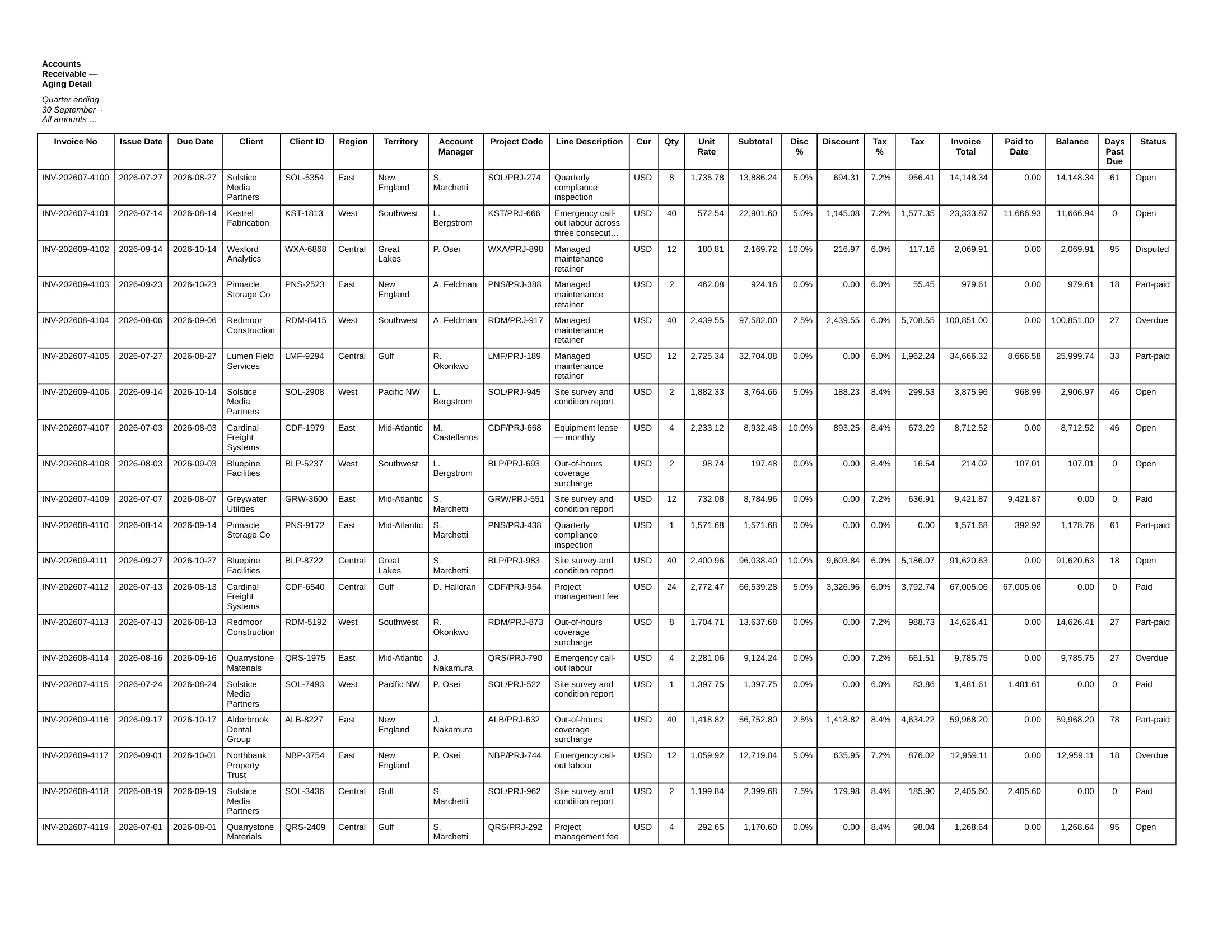
Page 1 of the PDF CrazySmartPDF produced from the same workbook: a landscape page carrying all twenty-three columns, every row intact.

10 pages. All 23 columns on page 1, every row kept whole.

Real output from both tools, same input file. Sample data: every company, invoice number and figure in it was invented. No customer information.

01Convert now · free

Drop your workbook.
Get a real PDF.

No install and no sign-up. This is the same layout engine the desktop app runs, working in your browser.

Drop your .xlsx here

or . Your file is converted, then deleted.

.xlsx · .xls · .xlsm · .csv

In your browserwhat you’re using now

  • Free and instant, nothing installed
  • Same smart engine as the desktop app
  • One file at a time, converted then deleted

The softwareExcel add-in + desktop app

  • Whole-folder batch, hundreds of files
  • One-click button inside Excel (the add-in)
  • Converts on your own machine, nothing uploaded

Windows · Excel 2016+ · see the three versions →

02Why the output differs

Save as PDF prints your page setup.
This one lays the sheet out.

Excel exports what the print dialog was already going to do: same margins, same column breaks, same tiny fit-to-one-page text. CrazySmartPDF reads the sheet and decides where the page edges go, so the columns that matter are on page 1 instead of page 19.

The 30 things that go wrong, and the fix for each →

Rows A row is never split across a page break. The label and the number it belongs to stay on the same page.
Wide tables Columns too wide for one page are sliced across pages, not crushed down until nobody can read them.
Print area Anything sitting outside the print area is reported, not dropped in silence.
Self-check It reads its own PDF back and flags any page that came out blank or clipped at the edge.
Batch A whole folder in one pass, with a running log and a health report per file.
Formatting Number formats, colours, borders and cell styling come across. Your original workbook is never modified.

03Features

Three things it handles for you.

The work you would otherwise redo by hand on every file, every month.

Smart layout

Stop fighting Excel’s page setup.

It re-lays out every sheet. A row is never split across a page break, and a table too wide for one page is sliced across pages instead of shrunk until nobody can read it. If something falls outside the print area, it tells you rather than dropping it silently.

Batch a whole folder

Do the whole folder at once.

Point it at a folder of workbooks and it renders every one in a single pass. You get a running log while it works, and at the end a health report for each file, noting any page that came out blank or clipped at the edge.

Remembers your setup

Set it up once, not every time.

It remembers your last settings, which sheets to include and where to save, so you are not re-entering them on every run. The desktop app also batch-extracts a single page: pull page 3 out of a whole stack of PDFs in one go.

04Versions

Three ways to convert.

All three run the same layout engine. Two are software you install on Windows, the Excel add-in and the desktop app, which add whole-folder batch and a one-click button inside Excel and convert on your own machine. The third is the free web tool you just used.

Software · installs on Windows

Never leave the spreadsheet.

A one-click Smart Export button lives in your Excel ribbon. Pick the sheets, click, and a clean PDF drops next to your workbook. No exporting, no fighting page-break preview.

  • Runs inside Excel 2016+ on Windows
  • Best for people who live in the grid all day
  • Nothing uploaded, and your original is never touched

Software · installs on Windows

Batch a whole folder.

A standalone app for volume. Point it at a folder of workbooks and it renders every one, with a live log and a self-check report at the end. It also carries a PDF page extractor for pulling one page out of a stack of PDFs.

  • Drag a folder in, render it in one pass
  • Best for month-end runs and reporting teams
  • Converts on your device, plus PDF page tools

Web · free, in your browser — what you just used

Convert right in your browser. Instant

Nothing to install. Open the page, drop your workbook, and the same engine as the desktop app converts it on our server. A real PDF downloads. Good for one-offs, shared machines, and anyone on a Mac or without Excel. Your file is used to make the PDF and then deleted, never stored.

  • No install, runs in any modern browser
  • The same layout engine as the desktop app
  • Your file is converted, then deleted
  • Whole-folder batch and the in-Excel button: added by the Windows apps

05What it costs

Free. The only paid line is batch size.

Every feature is in the free version: the layout pass, the self-check, full-sheet rendering, per-sheet rules. The free desktop app converts up to five files in one run. Pro lifts that cap, once, for good.

Free

$0

Browser tool and the full desktop app. Up to 5 files per run. No account.

Get it free

Pro

$39one-time

Everything in Free, with no cap on batch size. Not a subscription, nothing renews.

See Pro

06See it work

Fifty seconds, on a real workbook.

A wide sheet Excel would slice down the middle, laid out whole and readable, and then the finished PDF checking itself before it goes out.

Sample data: invented companies and figures, no customer files.

All four films, with transcripts →

Before you download

Things you can check yourself

4 checks, each one re-run against the real artefact · last verified 24 August 2026

  1. Signed installer

    The installer is Authenticode-signed and the signature verifies: publisher Guowei Wu, certified by Microsoft ID Verified CS AOC CA 03.

    Right-click the downloaded file, then Properties, then Digital Signatures to check this yourself. The signature is RFC-3161 timestamped, so it keeps verifying after the signing certificate itself expires. The app also replaces itself when a new version ships, so the file you check today is not necessarily the one running next month.

    How this was checked

    Authenticode signature on CrazySmartPDF-win-Setup.exe (83170472 bytes), issued by Microsoft ID Verified CS AOC CA 03. Verify it yourself: right-click the file, then Properties, then Digital Signatures.

    • Get-AuthenticodeSignature "CrazySmartPDF-win-Setup.exe" → Valid ("Signature verified."), signer Guowei Wu, issuer Microsoft ID Verified CS AOC CA 03, thumbprint F27CB21DC6FEAA88639059D92F955E3050CE1724
    • local "CrazySmartPDF-win-Setup.exe" sha256 1c34b4e4d518f8d1cac9f38ebaf4ec96ad2b2941deeda131276d623b9ada2ca9 == published asset digest for GuoweiWu4279/crazysmartpdf-download@v1.1.1/CrazySmartPDF-win-Setup.exe (83170472 bytes) — byte-identical to what visitors download

    Checked

  2. Where your files go

    The Excel add-in and the Windows desktop app convert on your own machine: your spreadsheet is read, rendered and written to PDF locally, and the app's interface and preview are served from a folder on disk rather than from a server. The free browser converter is the one exception and says so — that file is uploaded, converted and deleted, never stored.

    • While it runs it makes 2 outbound connections, and none of them carries any file content: validating a Pro license key you typed in (crazysmartpdf.com); checking a release feed for a newer version (github.com).
    • It updates itself without asking: on launch it checks that release feed for a newer version and, if there is one, downloads it, replaces the installed copy and restarts.
    • Installing it can reach Microsoft: the app needs the Microsoft Edge WebView2 runtime, and if your PC does not already have it the installer downloads it from go.microsoft.com (which redirects to msedge.sf.dl.delivery.mp.microsoft.com).
    • The same interface also powers the free web converter, so crazysmartpdf-convert.fly.dev is inside the bundle. That path only runs in a browser, where the file is uploaded, converted and deleted.
    • It opens whop.com in your browser when you click through to buy — opening the checkout page.
    How this was checked

    Not a curated list: every absolute URL in 31 shipped source and interface files was extracted and each of the 9 hosts accounted for, and the install-time download comes from the package's own declared prerequisites. Full policy: https://www.crazysmartpdf.com/privacy.

    • 31 file(s) across desktop app source + shipped interface bundle yielded 9 distinct host(s), every one accounted for: crazysmartpdf-convert.fly.dev crazysmartpdf.com github.com reactjs.org schemas.microsoft.com whop.com www.w3.org {pdfhost} {uihost}
    • "Program.cs" update path classified silent_auto_update from symbols [check download apply], feed https://github.com/GuoweiWu4279/crazysmartpdf-download, prompts user: false
    • CrazySmartPDF.nuspec declares runtimeDependencies [webview2]; bootstrapper URL(s) present in the installer binary: https://go.microsoft.com/fwlink/p/?LinkId=2124703 → msedge.sf.dl.delivery.mp.microsoft.com
    • 3 file(s) under "tenants/autopdf/app-ui/dist" (.js .html .css) scanned against 11 forbidden pattern(s): zero hits
    • GET https://www.crazysmartpdf.com/ → 200, 92315 bytes, title "CrazySmartPDF — smart Excel to PDF layout, in batch, free", contains ["100% offline","then deleted","never stored","Excel","Windows","PDF"]
    • GET https://www.crazysmartpdf.com/privacy → 200, 35519 bytes, title "Privacy Policy — CrazySmartPDF", contains ["Privacy Policy"]

    Checked

  3. What it costs you to try

    You can use it without paying, without an account, and without anything renewing.

    • Free tier: no signup, no account, no card — the browser tool and the desktop app both work.
    • The free version is the whole product; the only limit is 5 files per batch run.
    • Pro is a one-time $39 purchase, not a subscription — no renewals, no monthly fee.
    How this was checked

    Every term above is stated on https://www.crazysmartpdf.com/pricing.

    • GET https://www.crazysmartpdf.com/pricing → 200, 50093 bytes, title "Pricing — CrazySmartPDF", contains ["No account","No subscription","no signup","one-time purchase","no renewals","up to 5 files","5 files","$39"]

    Checked

  4. Who is behind it

    Guowei Wu builds and publishes CrazySmartPDF. That name is on the code-signing certificate, which Microsoft ID Verified CS AOC CA 03 issued only after verifying the identity behind it.

    Support goes to crazysmartpdf@gmail.com.

    How this was checked

    Guowei Wu is the publisher named on the installer's code-signing certificate, issued by Microsoft ID Verified CS AOC CA 03. Support: crazysmartpdf@gmail.com.

    • Get-AuthenticodeSignature "CrazySmartPDF-win-Setup.exe" → Valid ("Signature verified."), signer Guowei Wu, issuer Microsoft ID Verified CS AOC CA 03, thumbprint F27CB21DC6FEAA88639059D92F955E3050CE1724
    • GET https://www.crazysmartpdf.com/privacy → 200, 35519 bytes, title "Privacy Policy — CrazySmartPDF", contains ["crazysmartpdf@gmail.com"]

    Checked

Each line above is generated from a check that passed, not typed by hand — the check and what it answered are under “How this was checked”. Last checked 24 August 2026.

07FAQ

The honest answers.

What it does, what it needs, and where your files go.

All 16 questions on one page →

How is this different from Excel’s “Save as PDF” or a free converter?

Those do a dumb print: same margins, same cut-offs, same tiny “fit to one page” text — and one file at a time. CrazySmartPDF actually re-lays-out each sheet so no row is split and wide columns are fitted or sliced across pages rather than clipped, does a whole folder at once, tells you if it had to drop anything, and checks its own output for bad pages. It’s the layout work you’d otherwise do by hand on every file.

Is it actually free?

Yes — it’s free. CrazySmartPDF is free to use, with no trial clock and no paywall on the core features. We may add paid options for heavier or more advanced use down the road, but the core stays free.

Is it only for invoices?

No. The engine is general — it renders any Excel workbook. Invoices are just where it started. It’s just as at home with financial statements, board reports, rate cards, schedules, and wide data tables — anything that has to look right on a page.

Do I need Excel installed?

Yes. CrazySmartPDF works from your real workbook, so it needs Microsoft Excel installed (2016 or newer, Windows). Cover and pivot pages export through Excel itself; other sheets are re-laid-out by the engine, which keeps your number formats, colours, borders and cell styling. If Excel isn’t present, the add-in and desktop app tell you clearly rather than fail silently.

Does my data leave my computer?

It depends which one you use. The Excel add-in and desktop app render locally on your machine — your workbooks and the PDFs made from them never leave your PC. The apps are not sealed off from the internet, though, and we would rather say so than let you find out: on launch the desktop app checks its update feed and replaces itself without asking if a newer version exists, and it sends a Pro license key you paste in to be validated. Neither request carries any part of your files. The free web converter on the home page does send your file to our server, where the same smart engine as the desktop app converts it and returns the PDF; the file is processed in a temporary folder that is deleted right after each request and is never stored. The privacy policy spells all of it out.

Which sheets get rendered, and can I control layout?

Your choice — one sheet, several, or the whole workbook in order. You can also mark specific sheets (like a pivot or cover) to print through Excel natively, and adjust paper size, margins and orientation.

Will it change my original workbook?

Never. CrazySmartPDF only reads your workbook and writes new PDF files. Your .xlsx is left exactly as it was.

Does it work on a Mac?

The native add-in and desktop app are Windows-only — they drive your installed Excel, so there’s no Mac or Linux build. The free web converter on the home page runs in any modern browser, Mac included — it uses the same smart engine as the desktop app, converting your file on our server and returning the PDF (your file is deleted right after, never stored). The Windows add-in and desktop app add whole-folder batch and a one-click button inside Excel, and run fully offline.

How do I get it?

The native Excel add-in and desktop app are available for Windows (Excel 2016 or newer) — they add whole-folder batch and a one-click button inside Excel, and run fully offline. Prefer not to install anything? The free web converter on the home page converts a workbook right now with the same smart engine — open the Convert section, drop a workbook, and it makes a real PDF (your file is converted on our server, then deleted).

Does it need an internet connection?

Converting does not need one. Once installed, the Excel add-in and desktop app lay out and render right on your machine, offline. Two things do use a connection when you have one: on launch the desktop app checks its update feed and replaces itself without asking if a newer version exists, and activating Pro sends the key you paste in to be checked. Neither sends any part of your files. Installing the app can also fetch one component from Microsoft — the Edge WebView2 runtime its window is drawn with — if your PC does not already have it. The web converter needs the internet: your file is sent to our server, converted there with the same engine, and the PDF returned — then the file is deleted, never stored.

What file formats can it open?

Standard Excel workbooks — .xlsx, .xls, .xlsm and .xlsb. Because it opens through your own copy of Excel, it can open whatever your Excel opens. What comes out is always an ordinary PDF.

Can it handle pivot tables, charts, and merged cells?

Multiple sheets, yes — one, several, or the whole workbook in order. For pivot tables, cover pages, or sheets built around charts, you can mark those sheets to print through Excel natively, so they come out looking exactly as Excel itself prints them. The smart re-layout handles the ordinary data grids, where a row or cell is never split across a page break.

Will the PDF match my spreadsheet exactly?

Yes — it reads your real workbook, so your number formats, colours, borders and cell styling come out as Excel shows them (cover and pivot pages export through Excel itself; other sheets are re-drawn by the engine). What CrazySmartPDF changes is the pagination: it re-lays-out the pages so no row is split, and wide columns are fitted or sliced across pages rather than clipped. The content itself is untouched.

What does the self-check actually catch?

After it renders, CrazySmartPDF rasterises its own PDF and scans every page for two things: blank or orphan pages, and content clipped at the right edge. It writes whatever it finds into a per-file health report you can check — it names the suspect page rather than passing over it silently. It doesn’t auto-fix; the flag is the feature.

Can it convert a whole folder at once?

Yes — that’s the batch mode in the desktop app. Point it at a folder of workbooks and it renders every one in a single pass, with a running log and a self-check report at the end. It’s built for month-end runs and reporting stacks, not one file at a time.

What’s the difference between the Excel add-in, the desktop app, and the web converter?

All three run the same smart layout engine — the same engine lays out your workbook. The Excel add-in adds a one-click Smart Export button to your ribbon; the desktop app is standalone and adds whole-folder batch plus a PDF page extractor. Both run locally on Windows with Excel, fully offline, and never modify your originals. The web converter is an instant, install-free path: it runs in any browser on any OS and converts your file on our server, returning the PDF (your file is deleted right after each request, never stored). What the Windows apps add over the web tool is whole-folder batch, the in-Excel button, and running entirely offline.

Ready when you are

Stop fixing PDFs
by hand.

Free, with no trial clock · web files are converted then deleted, never stored · the Windows add-in and desktop app convert on your own machine · Windows with Excel 2016+