Compare · 18 comparisons
Every other way to turn a spreadsheet into a PDF renders the page setup you already have. CrazySmartPDF re-lays-out the sheet first. These pages show what that difference does to the same file, tool by tool.
What actually differs
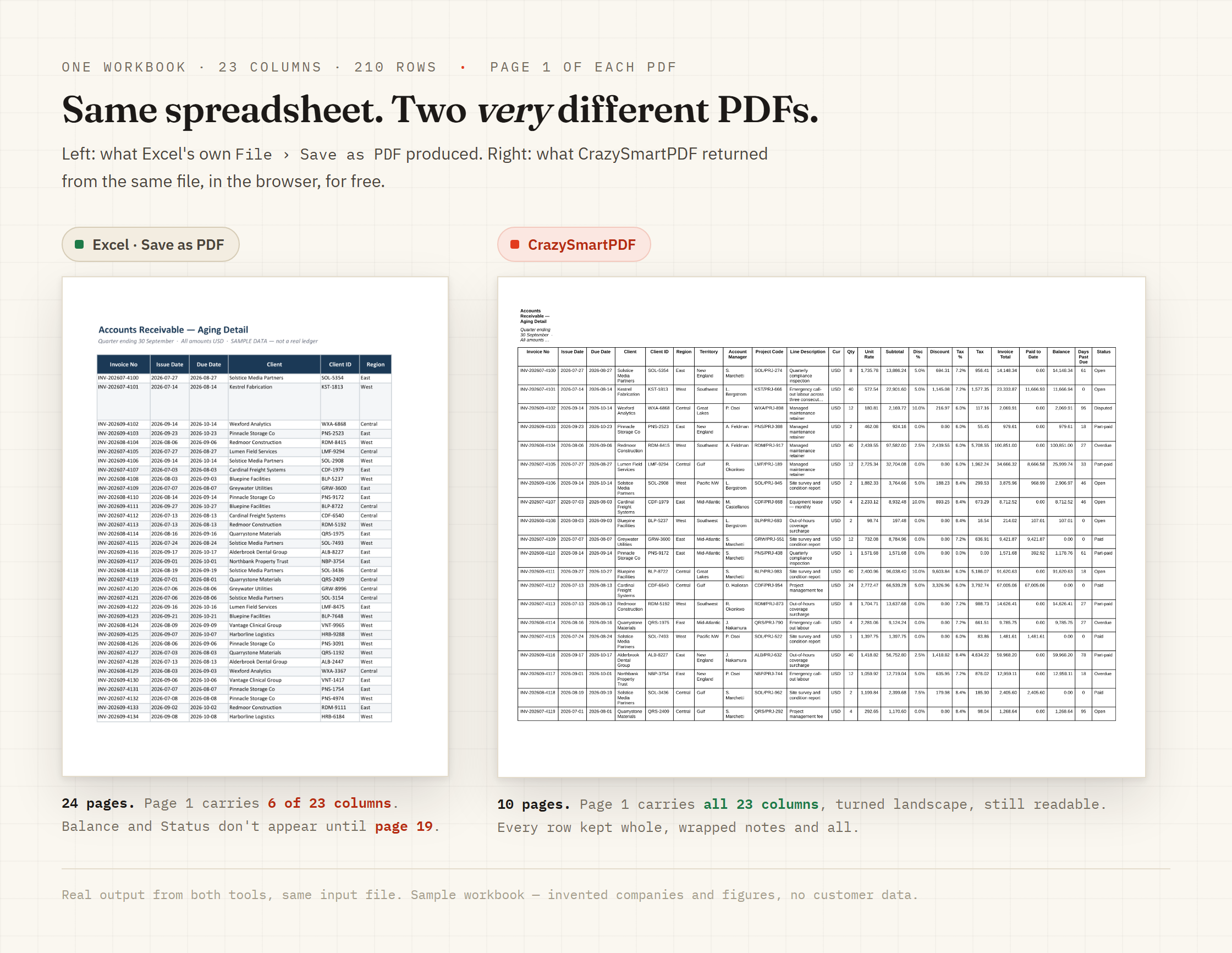
The local routes. They all render your page setup as it stands, so whatever the page setup does to a wide table is what you get.
Fast, free, and they work from any machine. What they do with a spreadsheet that is wider than the paper is the thing to read about.
Acrobat, Able2Extract, Kutools and Power Automate all convert Excel to PDF as part of a bigger job. Here is how the narrow job compares.
Run your own file through it before you decide
The browser converter takes one workbook and hands back the PDF. It is free, there is no signup, and your file is deleted after the conversion. Compare that PDF with the one your current tool produced. The Windows desktop app adds whole-folder batch and needs Excel 2016 or newer.
