Head to head
If the workbook cannot leave your machine, the real options are Excel's own export, Microsoft Print to PDF, LibreOffice Calc, and a native desktop converter. What each one does to your layout, compared honestly.
Short answer: If the workbook cannot leave your machine, you have four real offline routes: Excel’s own File → Save as PDF, Microsoft Print to PDF, LibreOffice Calc’s export, and a native desktop converter such as CrazySmartPDF. All four keep the file on your PC. They differ in one thing that decides how the PDF actually looks: whether the tool re-computes the page layout, or simply prints the page setup your sheet already has. Three of the four print it as-is.
Every tool below runs locally. Nothing here uploads your file to a server, which is the whole point for anyone converting payroll, client financials or anything covered by a confidentiality clause.
That fence also excludes something of ours. CrazySmartPDF has a free web converter, and it does upload your file, convert it on the server and delete it afterwards. Convenient, and not an offline tool — so it is not in the table below. Only the native Windows add-in and desktop app qualify, and they need Windows with Excel 2016+ installed.
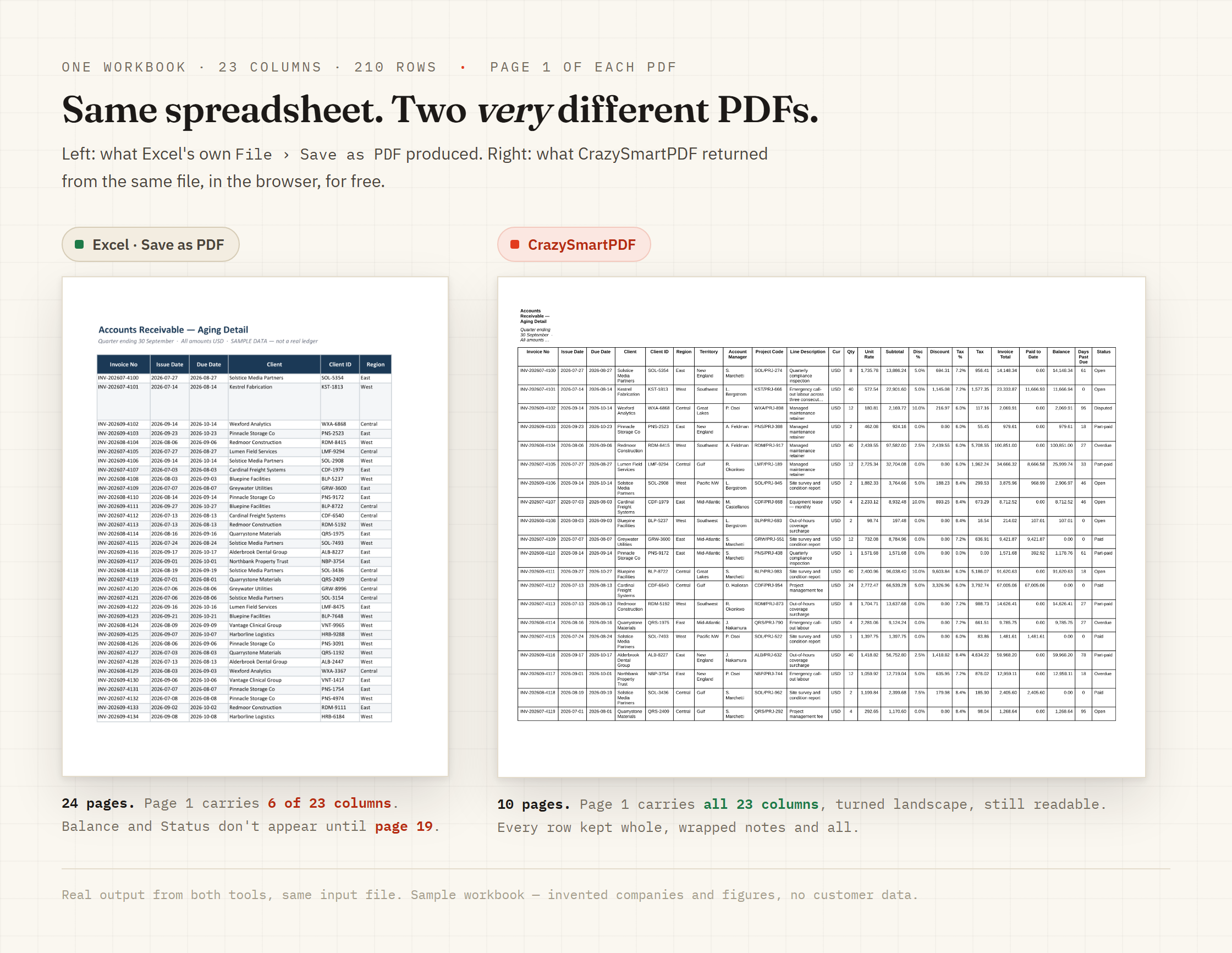
Excel: File → Save as PDF. The default, already on your machine, and faithful to your page setup — which is the problem. It exports the sheet the way your current margins, scaling and print area say to print it. If a row straddles a page break, it splits. If the table is wider than the paper, the extra columns go onto their own strip of pages further back.
Microsoft Print to PDF. A virtual printer, so the same pagination engine reaches it by a different door. It takes the paper size from the printer settings rather than from Excel’s page setup, which is why forum advice sometimes suggests it as a fix, and it produces a flat print with no clickable links. Same splits, same clipping.
LibreOffice Calc. Free, offline, and a genuinely useful answer when Excel is not installed at all. Its export is also a print of the page setup, and it renders the workbook with its own engine, so complex formatting, fonts and pivot layouts can shift compared with what Excel shows you.
CrazySmartPDF, native apps. Runs entirely on your PC, never modifies the original, and re-lays-out each sheet before rendering: rows stay whole across page breaks, and a table too wide for the paper is resized to a readable floor or sliced across pages with the label column repeated, rather than crushed to unreadable or cut off. It renders the sheet’s full data range rather than only what a print area happens to cover. Each rendered file is scanned for blank and clipped pages, and the suspect pages are flagged for review — it flags them, it does not rewrite your file. The desktop app takes a whole folder in one pass, free for runs of up to five files.
| Excel Save as PDF | Print to PDF | LibreOffice Calc | CrazySmartPDF (native) | |
|---|---|---|---|---|
| Stays on your machine | Yes | Yes | Yes | Yes |
| Layout | Prints your page setup | Prints your page setup | Prints your page setup | Re-computes: rows whole, wide tables kept readable |
| Wide table | Extra columns onto separate pages | Same | Same | Resized to a readable floor or sliced with repeated labels |
| Whole folder at once | No | No | No | Yes, one pass with a run log (free up to 5 files) |
| Checks the output | No | No | No | Flags blank and clipped pages for review |
| Needs Excel | Yes | Yes | No | Yes — Windows + Excel 2016+ |
| Cost | Included | Included | Free | Free on your files; one-time $39 beyond 5 files per run |
CrazySmartPDF is free to run on your own files, offline. See how it works, or read the plain-language version of what happens when you use an online converter instead.
Is converting Excel to PDF offline actually safer? It removes the question rather than answering it. An online converter puts a copy of your workbook on someone else’s server for as long as their retention policy says; a local conversion never creates that copy. For files under a confidentiality clause, that difference is the whole argument.
Does Microsoft Print to PDF give a better result than Save as PDF? Not usually. Both drive the same pagination, so both split the same rows and clip the same columns. Print to PDF takes its paper size from the printer settings instead of Excel’s page setup, which occasionally fixes an A4-versus-Letter mismatch, and it produces a flat print with no working links.
Can I convert offline without Excel installed? Yes — LibreOffice Calc opens .xlsx and exports to PDF with no Microsoft license. CrazySmartPDF’s native apps are not an option there: they drive your installed Excel for fidelity, so they need Windows with Excel 2016+.
Why is your own web converter not in the comparison? Because it uploads. It converts on the server and deletes the file afterwards, which is a reasonable trade for a one-off, but it is not offline conversion and this page is about offline conversion.
