Head to head
Print to PDF and Save as PDF are two doors into the same pagination, so both inherit your split rows and clipped columns. They differ in paper size, links and file size. Here is which to use when.
Short answer: Microsoft Print to PDF and Excel’s Save as PDF are two doors into the same pagination engine, so both inherit whatever your page setup does — the same split rows, the same columns pushed onto a separate strip of pages. Save as PDF is Excel’s own exporter and keeps the document intact: working hyperlinks, selectable text, and options for the whole workbook or just a selection. Print to PDF is a virtual printer, so it takes its paper size from the printer rather than from Excel and hands back a flat print. Use Save as PDF by default. Neither re-lays-out the sheet, which is why people who switch between them find the same page still broken.
The advice shows up in every long thread: try printing to PDF instead of saving as PDF. It is not superstition. The two paths read paper size and margins from different places, so when Excel and Windows disagree about A4 versus Letter, swapping doors can produce a different — sometimes correct — result. That is a real fix for a real, narrow problem.
What it does not touch is the layout. Both routes ask the same engine where the page breaks fall. If a tall row straddles the break, both slice it. If the sheet is wider than the paper, both push the extra columns onto their own pages further back.
| Save as PDF (Excel) | Microsoft Print to PDF | |
|---|---|---|
| What it is | Excel’s own export | A virtual printer driver |
| Paper size comes from | Excel’s Page Layout settings | The printer’s settings |
| Hyperlinks | Preserved | Not carried through |
| Scope options | Selection, active sheet, entire workbook | Whatever you send to the printer |
| Page breaks and clipping | Your page setup | Your page setup — identical |
Save as PDF is the better default for anything a person will click, search or archive. Print to PDF earns its place when Excel’s paper size is fighting you, when an add-in has broken the export path, or when you want the flattest possible file.
Either built-in route · page 19 of 24
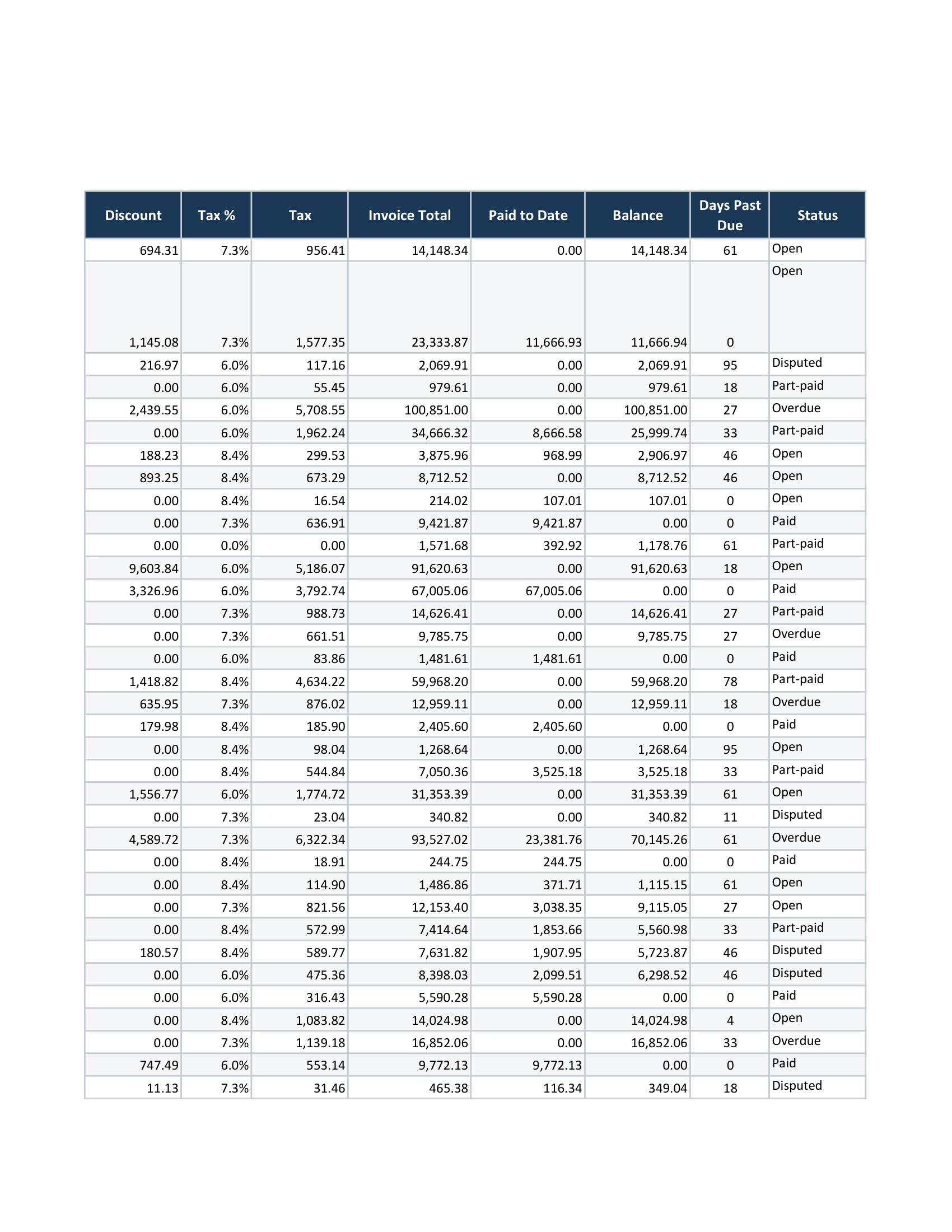
If swapping doors did not help, the thing you actually want is a different pagination — not a different exporter. That is what a layout pass does: it measures the real column widths, chooses portrait or landscape for the sheet rather than for the page setup, keeps every row whole across a page break, and resizes a too-wide table to a readable floor or slices it across pages with the label column repeated. CrazySmartPDF does that, exports cover and pivot pages through your installed Excel so the styling stays real, and flags any page that still came out blank or clipped so you see it before the reader does.
It needs Windows with Excel 2016+, and it is free to run on your own files, up to five per batch. See how it works.
Is Print to PDF better quality than Save as PDF? Not in resolution terms — both produce vector text from the same render. Save as PDF preserves more of the document, including working hyperlinks. Print to PDF’s advantage is that it reads paper size from the printer, which occasionally sidesteps an A4-versus-Letter fight.
Why does Print to PDF sometimes fix my page size? Because the paper size comes from the printer settings rather than Excel’s page setup. If those two disagree — often through Excel’s “scale content for A4 or 8.5x11 inch paper sizes” option — going through the printer can produce the size you meant. The underlying page-size setting is the cleaner fix.
Do either of them stop rows splitting across pages? No. Both use Excel’s pagination, which fills a page by height and cuts at the margin. Keeping a row whole requires re-computing where the breaks fall, which is a layout pass rather than an export setting.
Which one keeps my hyperlinks? Save as PDF. Print to PDF produces a flat print, so link areas do not survive.
