Head to head
How CrazySmartPDF's automatic re-layout and self-check compare with Excel's built-in Save as PDF export — and when the free built-in is all you need.
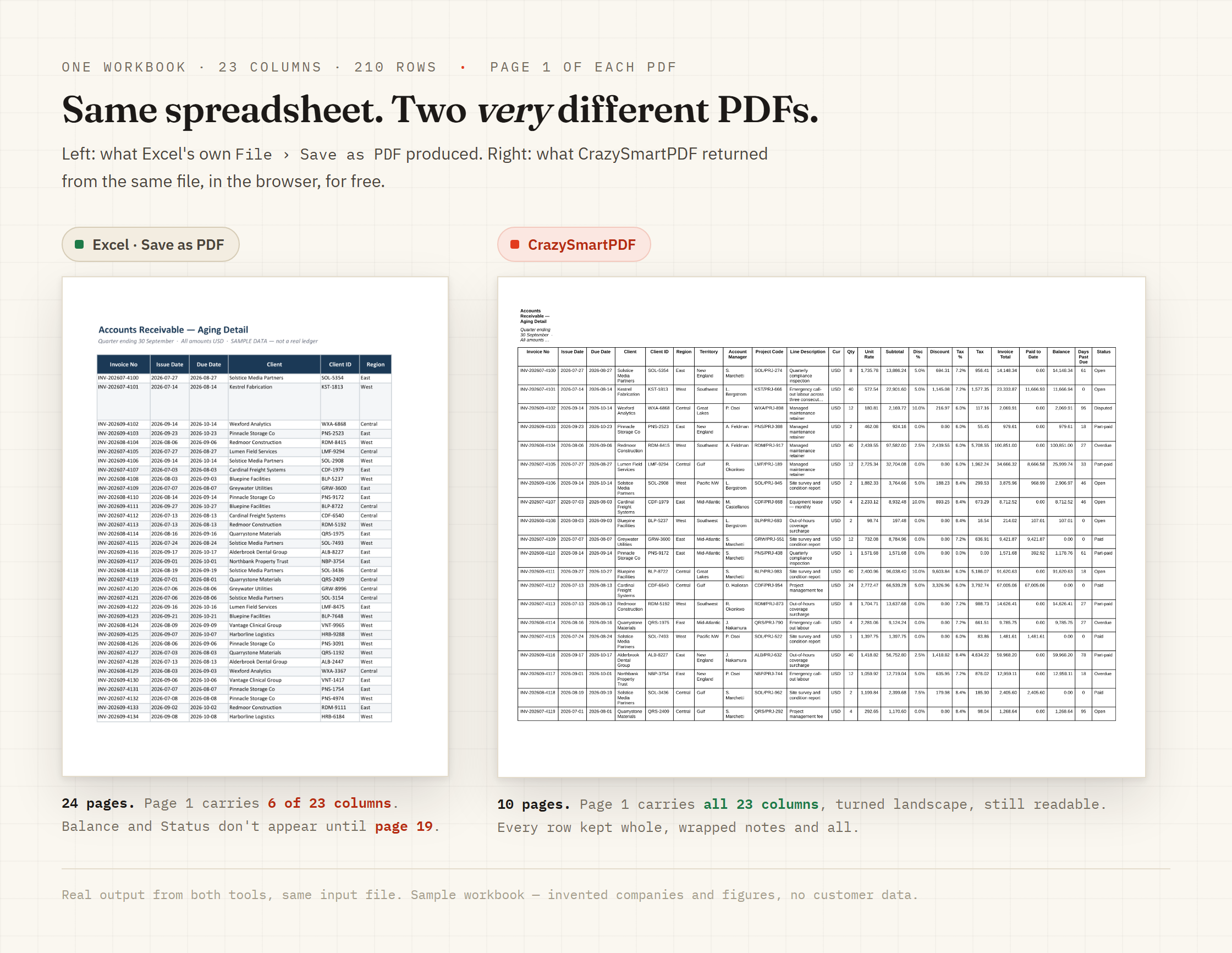
Short answer: if your sheet already fits the page, Excel’s built-in Save as PDF (File → Export → Create PDF) is the fastest choice — it’s free, it’s already in front of you, and there’s nothing to install. It struggles when a sheet is wider or longer than the page: it prints your current page setup as-is, so wide tables get cut at the margin, rows can split across a page break, and Fit Sheet on One Page shrinks everything to stay on a single sheet. CrazySmartPDF exists for that case — it re-lays-out the sheet automatically so no row is split and wide columns are fitted or sliced across pages rather than clipped, does a whole folder at once, and checks its own output (flagging any residual clip). The trade-off runs the other way too: CrazySmartPDF needs Microsoft Excel on Windows, while Save as PDF ships inside every copy of Excel, on Mac as well as Windows.
| Excel “Save as PDF” | CrazySmartPDF | |
|---|---|---|
| Cost | Free, built in | Free |
| Setup | None — already in Excel | Install the add-in or app; needs Excel 2016+ on Windows |
| Wide tables | Printed at the current page width; columns past the edge are cut or pushed onto extra pages | Re-laid-out — wide columns fitted or sliced across pages, any residual clip flagged |
| Page breaks | Can split a row or cell across two pages | Row-atomic — a row is never split across a page break |
| ”Fit to one page” | Shrinks the text, often past readable | Real layout at readable size |
| Content outside a set print area | Left out, with no note | Included — renders the full sheet (the desktop app flags data pulled in from beyond a print area) |
| Blank / bad pages | Exported as-is | Self-check flags blank and clipped pages (it flags them; it doesn’t auto-repair) |
| Many files | One at a time, by hand | Batch a whole folder in one pass |
| Platform | Anywhere Excel runs (Windows, Mac) | Windows + Excel only |
It’s already there — no install, no upload, no second tool. For a sheet that already fits the page (a small table, a one-page summary, an invoice built to print size), it’s instant, and CrazySmartPDF won’t produce it any faster. It also works wherever Excel works, including on a Mac. For a lot of everyday exports, that’s genuinely all you need.
And to be fair: you can get a clean PDF out of Excel by hand — by setting the print area, adjusting the scaling, and dragging page breaks in Page Break Preview. CrazySmartPDF’s point isn’t that Excel can’t; it’s that Excel makes you do that layout work manually, on every file.
CrazySmartPDF doesn’t just print your page setup — it rebuilds the layout:
CrazySmartPDF’s full render works from your real workbook, so it needs Microsoft Excel 2016 or newer on Windows — there’s no Mac or Linux build. Excel’s own Save as PDF has neither requirement: it’s in the box, on every platform Excel ships on. If you’re on a Mac, or on a machine without Excel, CrazySmartPDF’s free web converter runs right there — the same smart engine on our server, your file converted then deleted (never stored), row-atomic — and Excel’s built-in export is always in the box too.
CrazySmartPDF is free to use, with no trial clock. See how it works →
Related: vs free online converters · vs Adobe Acrobat · vs Able2Extract · the best free Excel-to-PDF tools
