Head to head
OfficeToPDF is a free command-line wrapper around Office's own PDF export, so it produces exactly what Save as PDF produces. CrazySmartPDF uses your Excel too, then re-lays-out the sheet. The real comparison.
Short answer: OfficeToPDF is a free, open-source command-line tool that converts Office documents by calling Office’s own built-in PDF export. That makes it dependable and scriptable, and it also means the PDF it produces is exactly the PDF that File → Save as PDF would have produced — split rows and clipped columns included. CrazySmartPDF also drives your installed Excel, but adds the step OfficeToPDF has no reason to have: it re-computes the page layout before rendering, and then checks the result. If your batch works and you just want it automated, OfficeToPDF is a fine free answer. If the batch keeps coming out broken, automation will not fix it.
It is a wrapper, and it says so plainly: it converts documents using Office’s in-built PDF export features. That design has real consequences, all of them honest.
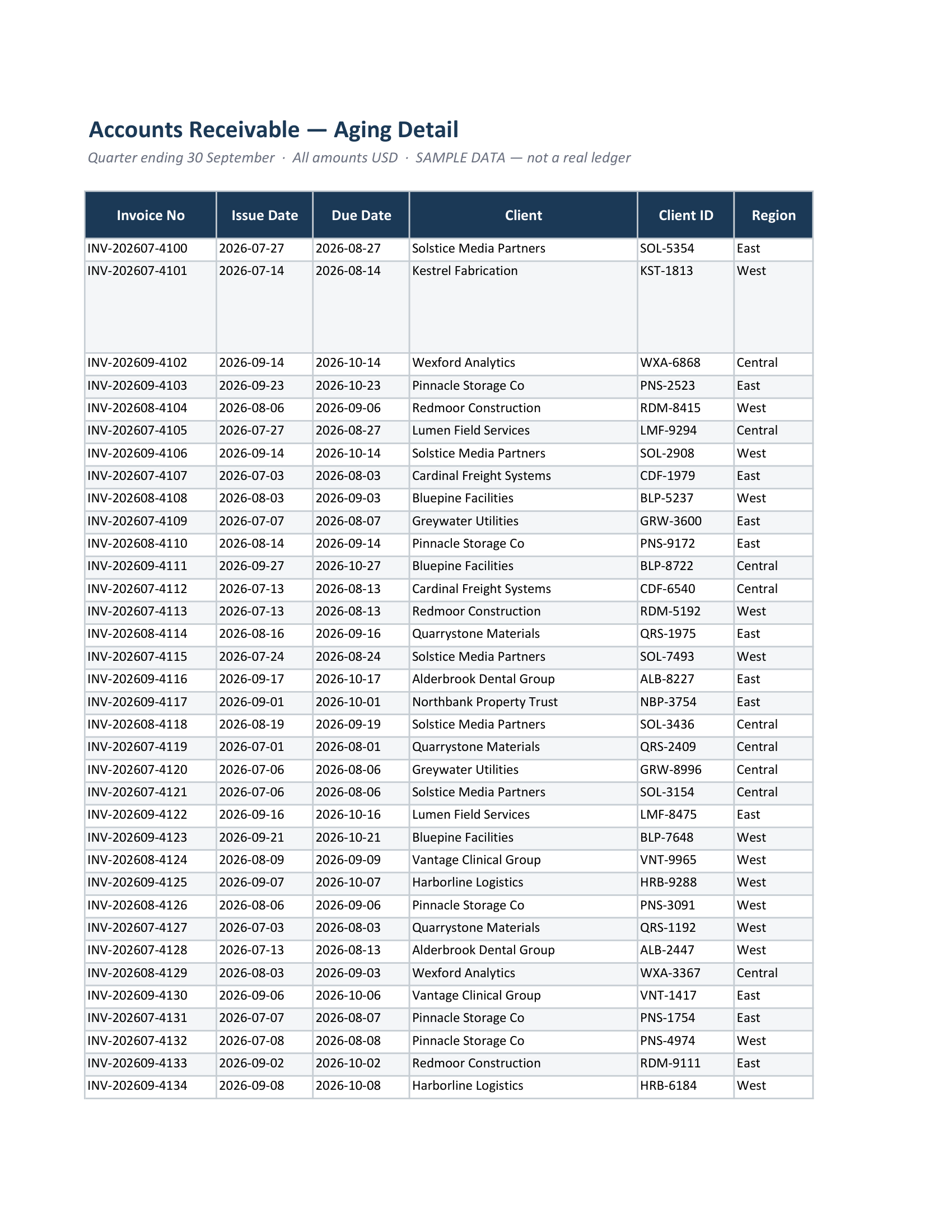
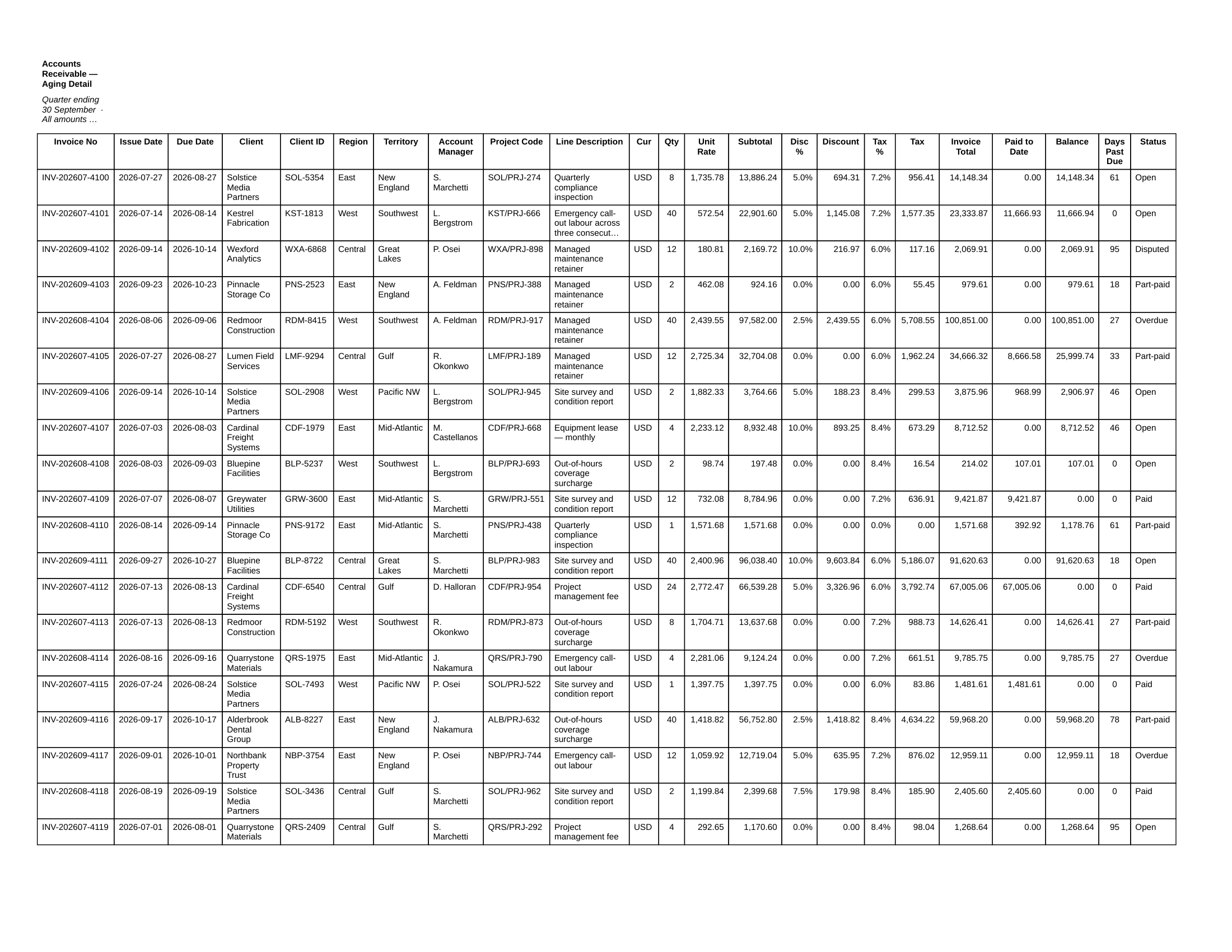
Excel’s exporter prints your page setup. It fills each page top to bottom and cuts at the margin, so a tall row that straddles the line gets sliced. It prints at the width your sheet is set to, so columns past the right margin go onto their own strip of pages further back. Wrapping that exporter in a command line automates the result; it does not change it.
Office's own export · page 1 of 24
After a layout pass · page 1 of 10
| OfficeToPDF | CrazySmartPDF | |
|---|---|---|
| Needs Office installed | Yes | Yes: Windows + Excel 2016+ |
| Interface | Command line | Desktop app + Excel add-in |
| Layout | Office’s own export, unchanged | Re-computed: rows whole, wide tables kept readable |
| Word and PowerPoint | Yes | No — Excel only |
| Output check | None | Flags blank and clipped pages for review |
| Cost | Free, open source | Free on your files; one-time $39 beyond 5 files per run |
They are not really rivals. One automates Excel’s exporter; the other replaces the part of it that decides how the sheet sits on the page. CrazySmartPDF is free to run on your own files — see how it works.
Does OfficeToPDF change how Excel paginates a sheet? No. It calls Office’s in-built PDF export, so the pagination, the page breaks and the clipping are Excel’s. That is by design: it is a conversion wrapper, not a layout engine.
Can I script CrazySmartPDF the way I script OfficeToPDF? The shipped route is the desktop app’s folder batch with a run log, not a public command line. If a scheduled command line is a hard requirement, OfficeToPDF or a CLI converter is the better fit today.
Do both need Microsoft Office? Yes. OfficeToPDF needs it because it calls Office’s exporter; CrazySmartPDF’s native apps need Windows with Excel 2016+ because they export styled cover and pivot pages through Excel. Without Excel, CrazySmartPDF’s free web tool converts one file at a time in a browser.
