
Use case
Data tables to PDFevery row intact
Export a large Excel data table to PDF with every row intact — row-atomic pagination across hundreds of rows, the full sheet rendered rather than cut to a print area, self-checked for blank pages.
Free · your file is deleted after converting, never stored · desktop batch needs Excel 2016+ on Windows
Sometimes the deliverable is just the data: a long export, hundreds or thousands of rows, that someone needs as a fixed, shareable PDF rather than a live spreadsheet. It looks like the simplest possible job — until Excel’s Save as PDF turns a clean table into a hundred pages where rows are chopped in half, the last few columns are missing, and a blank page shows up every so often for no obvious reason.
What breaks on a large table
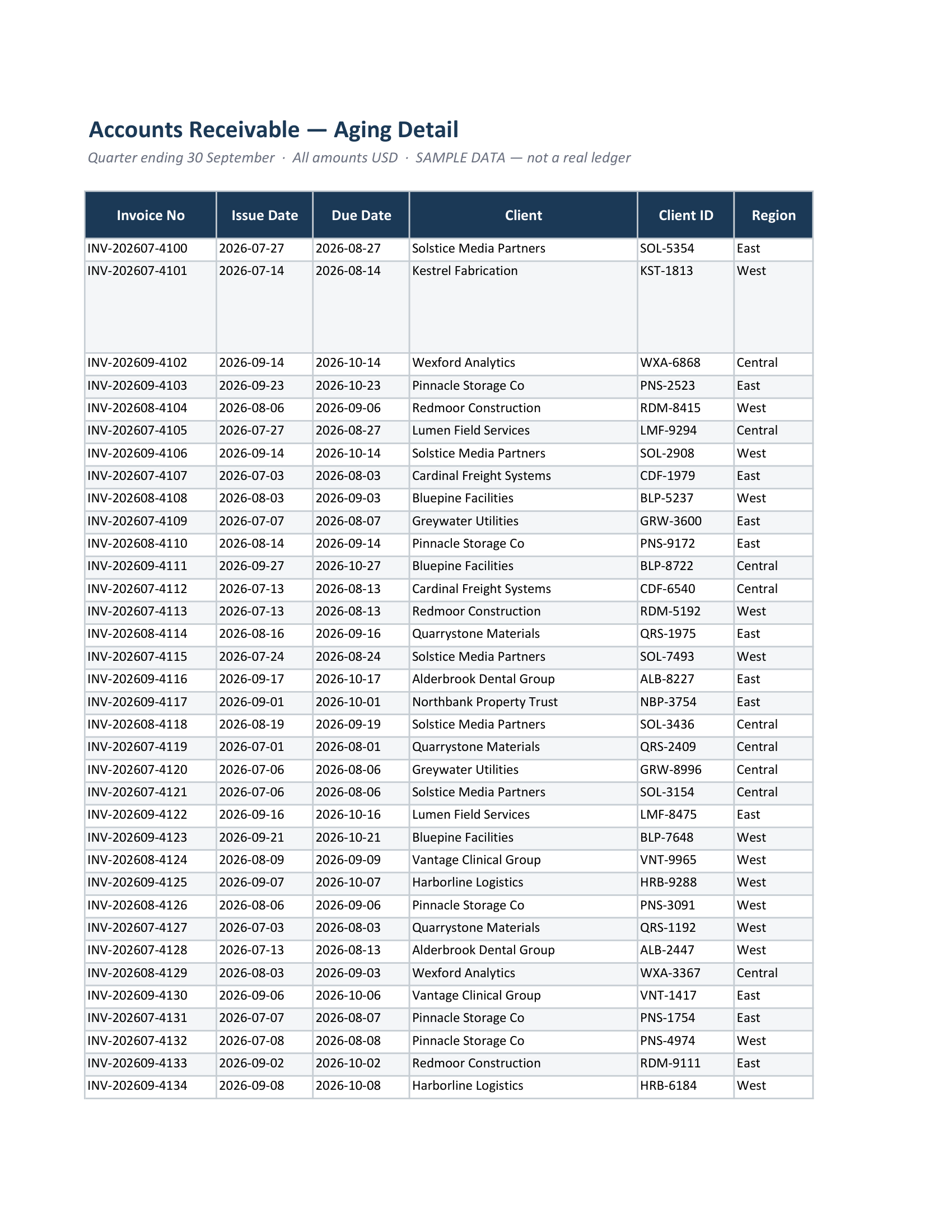
- With that many rows, page breaks land inside rows constantly — a value on one page, its label on the next.
- A wide export has its trailing columns clipped off the right edge, the same on every page.
- A print area clamps the table to an old range, so the rows past it (the newest data, usually) never make it into the PDF.
- Long tables are exactly where blank and orphan pages creep in unnoticed — and nobody proofreads a 120-page PDF by hand.
Excel · Save as PDF · page 1 of 24
CrazySmartPDF · page 1 of 10
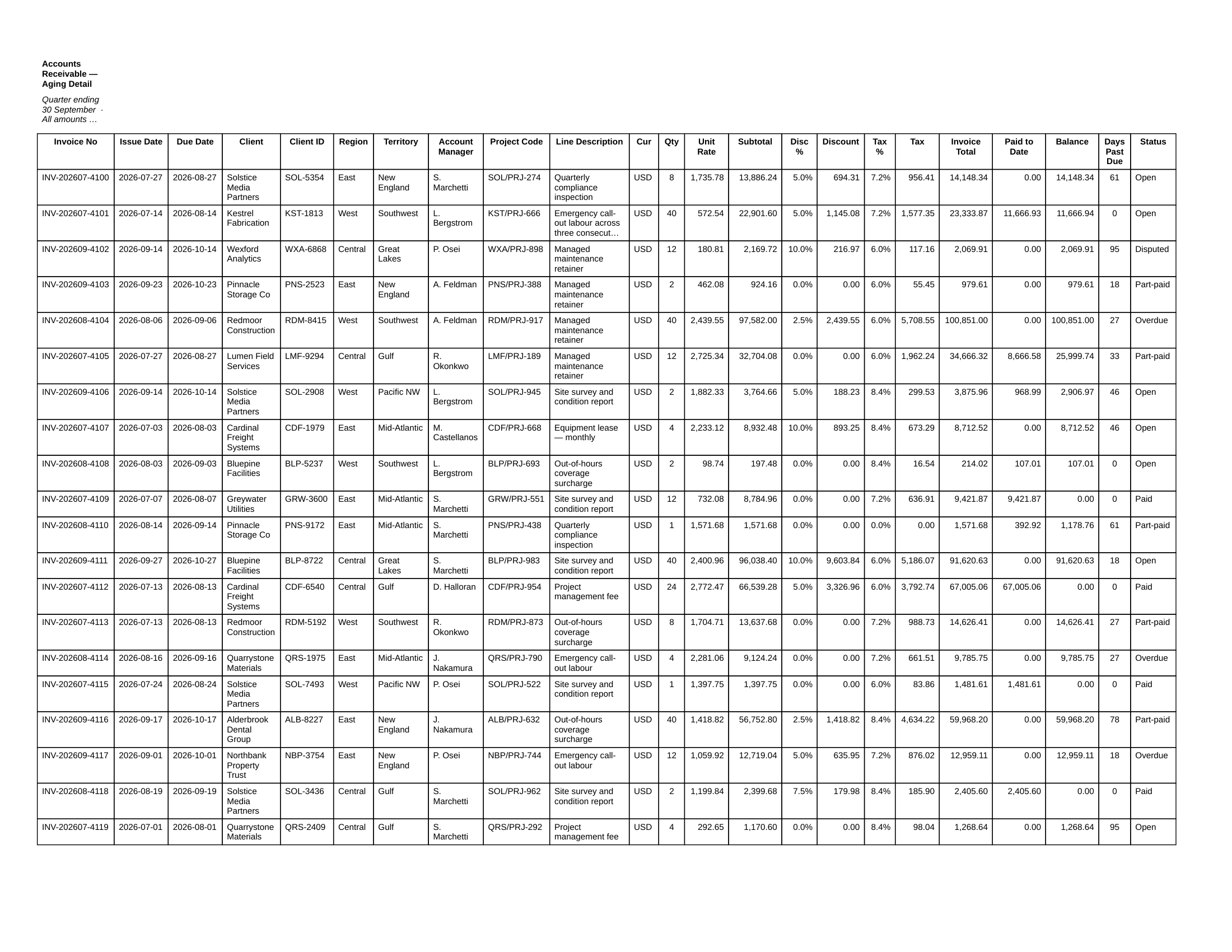
How CrazySmartPDF handles a big export
- Row-atomic pagination, all the way down. Across every page of a long table, a row is never split — the table stays readable from the first page to the last.
- Wide tables are fitted across pages rather than clipped at the margin, so trailing columns survive.
- Print-area honesty. CrazySmartPDF renders your full used range instead of cutting to a print area, so the missing-newest-rows trap doesn’t happen — a stale print area can’t quietly hold back your latest rows, and the desktop app’s pre-send review shows you when it pulled in data from beyond one.
- It checks its own work. The finished PDF is rasterised and scanned for blank and orphan pages and clipped edges, and anything suspect is flagged — the proofread you’d never do by hand on a hundred pages.
- Batch and repeat. A folder of exports renders in one pass, each one self-checked, with a run log at the end.
The honest part
CrazySmartPDF’s full render runs on Windows and needs Excel installed (2016+); it re-lays-out a big table across pages while keeping your number formats, colours and cell styling. The self-audit flags blank, orphan, and clipped pages for you to review; it surfaces the problems rather than silently rewriting the table, so the data you send is the data you saw. It’s free to use, and your original export is only read, never changed. Prefer not to install anything? The free web converter on the home page runs the same smart engine on our server — your file is converted, then deleted (never stored) and paginates a long table row-atomic; the self-audit is what the Windows add-in and desktop app add.