
Answers Excel → PDF
Excel PDF cuts off text inside cells — why it clips and how to stop it
Short answer: Text clips inside a cell when the row is not tall enough for what the cell holds, and the screen forgives that while the printer does not. Excel shows overflow text spilling into the neighbouring empty cell; the PDF stops it at the cell boundary. The fix is to make the row height honest — select the rows, use Home → Format → AutoFit Row Height, turn on Wrap Text where the content is long, and unmerge the merged cells that block autofit from working at all.
Why the screen and the PDF disagree
On screen, a long label in a cell whose neighbour is empty simply keeps going. It looks fine because nothing interrupts it. On export, Excel renders each cell inside its own boundary, so anything the cell cannot hold is cut. The same happens vertically: a wrapped paragraph in a cell whose row height was set manually shows the first two lines and drops the rest.
Neither is a bug. Both are the same fact — the sheet has no page edges, the PDF does.
The fix, in order
- Select the affected rows, then Home → Format → AutoFit Row Height. This alone solves most of it.
- Turn on Wrap Text (Home → Wrap Text) for any column holding sentences rather than values. Without it, autofit has nothing to fit to.
- Unmerge merged cells. AutoFit Row Height does not work on merged cells, which is why the one row that stays wrong is almost always merged. Use Center Across Selection (Format Cells → Alignment → Horizontal) for the same visual effect without the merge.
- Check the column width too. Numbers do not clip — they turn into
#####. That is a width problem, not a height problem. - Look in Page Break Preview before exporting, not in the PDF afterwards.
Excel · Save as PDF · page 1
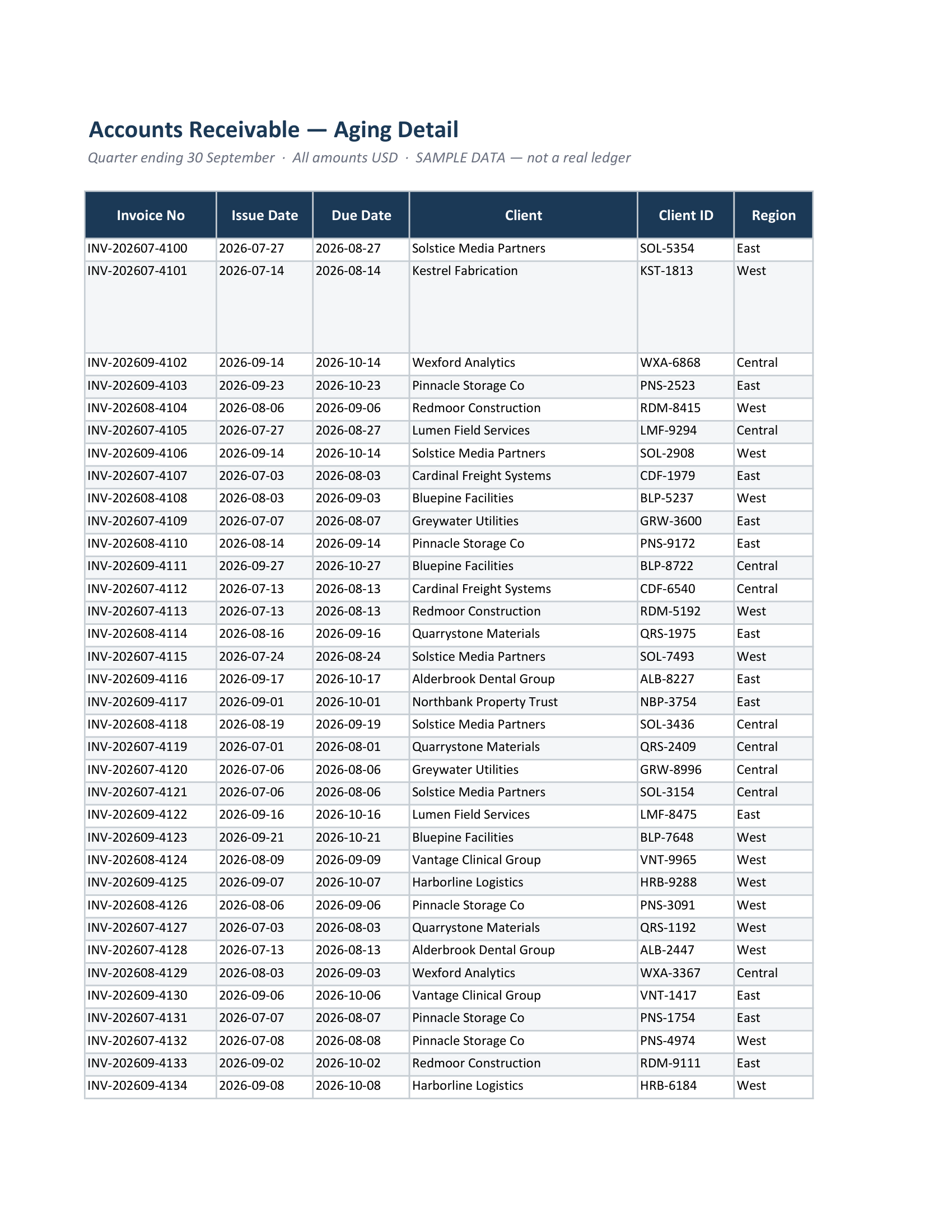
When the row is fine and the page still is not
If autofit is on, nothing is merged, and text still goes missing, the content is probably not clipped — it is elsewhere. A wide sheet gets split into column groups that print on separate pages, so a row’s tall wrapped note can end up a dozen pages away from the row it belongs to, leaving an empty band behind. No row-height setting fixes that, because the row height is correct.
That is a pagination problem. A layout pass measures the real column widths, keeps each row whole, and resizes a too-wide table to a readable floor or slices it across pages with the label column repeated, so a row’s content stays with the row. CrazySmartPDF does this and then scans each rendered file for pages that came out clipped or blank, flagging them for review rather than editing your workbook. Windows with Excel 2016+, free on your own files. See how it works.
FAQ
Why does text show on screen but get cut off in the PDF? Overflow text spills into an empty neighbouring cell on screen. On export, each cell is rendered inside its own boundary, so anything the cell cannot hold is cut at the edge.
Why does AutoFit Row Height do nothing on one row? That row almost certainly contains a merged cell. AutoFit does not apply to merged cells. Unmerge and use Center Across Selection instead.
Why do my numbers turn into hashes in the PDF? The column is too narrow for the formatted number. Widen the column, or reduce the decimal places — hashes are Excel refusing to show a truncated number rather than a rendering fault.
Can a converter fix clipped cells for me? It can lay the sheet out so the clipping does not happen, and it can flag the pages that still look wrong. What it should not do is silently rewrite what is in your workbook — if a cell’s content is being cut, you want to see it, not have it edited.