
Answers Excel → PDF
How to keep Excel's print area from silently dropping data in the PDF
Short answer: a print area is Excel doing exactly what it was told — “print only this block” — so anything outside it silently disappears from the PDF, with no warning. Fix it in Excel by clearing or widening the print area. Or skip the problem entirely: CrazySmartPDF doesn’t cut to the print area at all. It renders your sheet’s full used range and, before you send, shows you it pulled in data from beyond the print area — so a stale or narrow print area stops being how you lose a column.
Fixing it by hand in Excel
- Page Layout → Print Area → Clear Print Area prints the whole used range again. Or select everything you do want and Set Print Area.
- Check for a stale definition: Formulas → Name Manager →
Print_Area. An old print area set months ago is a classic silent-drop culprit. - View → Page Break Preview draws the print-area boundary as the outer line, so you can see what’s inside versus excluded.
The catch: Excel never warns you the print area is cutting real data — it just quietly obeys. Set it a little too small, and a column of totals sitting just outside is simply gone from the PDF, with nothing to tell you.
What “silently” looks like
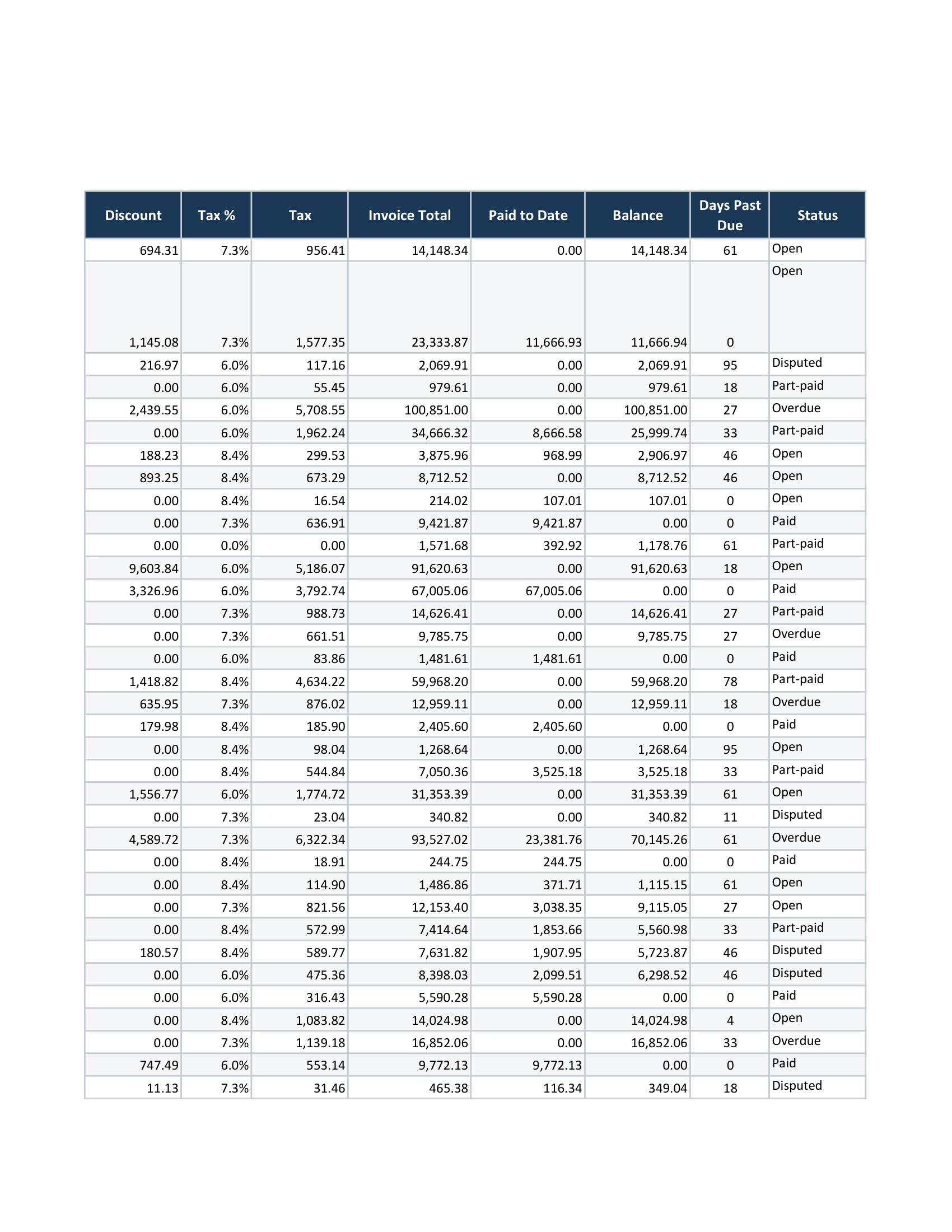
That silence isn’t unique to print areas. Here it is in its other form, from a sample workbook with no print area set at all — nothing was excluded, and the money still ended up somewhere nobody would find it:
Excel · Save as PDF · page 19 of 24
How CrazySmartPDF handles it
CrazySmartPDF doesn’t cut to the print area. It reads your sheet’s full used range and lays all of it out — the print area is a hint, not a boundary — so a narrow or stale print area stops being how a column quietly goes missing. The PDF is your real data.
And it shows its work. In the desktop app’s pre-send review, CrazySmartPDF flags when it pulled in data that sat beyond your print area — so you send the full sheet with your eyes open, not a boxed-in guess. The free web converter renders the same full sheet.
No Excel, or on a Mac? The free web converter runs the same engine on our server — your file uploaded, converted, then deleted, never stored.