
Blog
The 60-second check before any client-facing spreadsheet PDF goes out
Five things to look at before a spreadsheet PDF leaves the building: the last column, split rows, readable text, stray blank pages, and anything that sat outside the print area.
Short answer: Five checks, in this order, and they take under a minute on a document you are about to put your name on. Is the last column there. Is any row cut across a page break. Can the text be read at paper size. Are there stray blank pages. Is anything missing that used to be in the report. Four of the five are your eyes; the fifth is the one people never do, because you cannot see an absence.
1. The last column
Open the final page of each column group and check the right-hand edge. On a wide sheet, Excel prints the columns that fit and pushes the rest onto a separate strip of pages at the back — so the document is not truncated, it is rearranged, and the money columns can be twenty pages from the reference numbers they belong to.
Do this: scroll to the end. If there are pages carrying numbers with no identifying column beside them, the reader will not be able to use them.
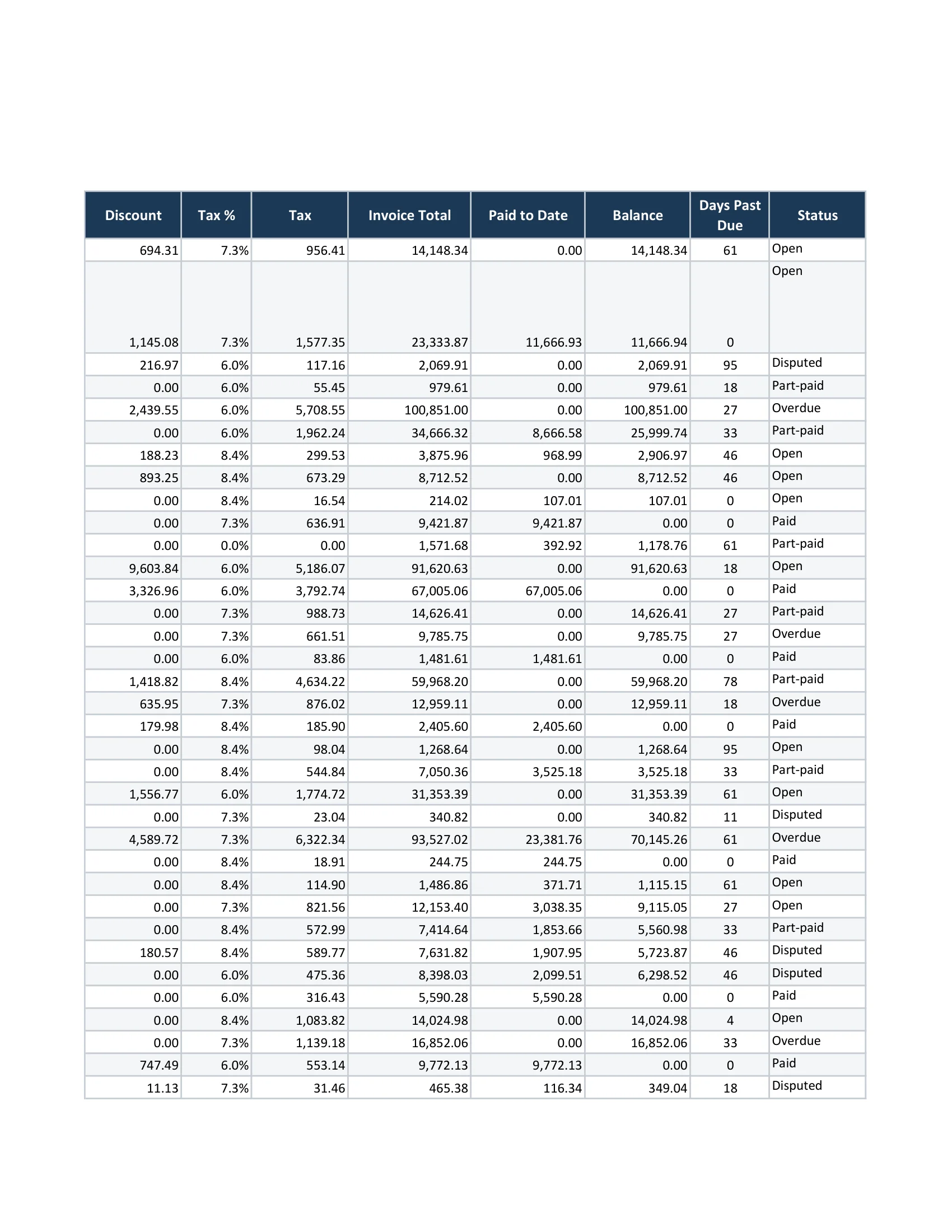
This is page 19 of a twenty-four-page export of a twenty-three-column sheet. Invoice Total, Paid to Date, Balance, Days Past Due and Status all live here — eighteen pages from the invoice numbers on page 1. Nothing was lost and the document is unusable. Every page of the real PDF was scanned for those header strings to confirm where they landed; the sample workbook is synthetic, with every company, person and figure invented for the capture.
2. A row cut across a page break
Look at the bottom of two or three pages. Excel fills each page by height and cuts where the margin falls, so a tall row — one with a wrapped description — can be sliced, leaving the label on one page and the number on the next.
Do this: check the last row of a page and the first row of the next. If they are the same row, you have found it.
3. Text you can actually read
“Fit Sheet on One Page” forces width and height together, and on a large sheet it will shrink the type until it is decorative. Zoomed in on screen, everything looks fine.
Do this: view the PDF at actual size, which is roughly what the paper will be. If you would not read it at that size, neither will they.
4. Stray blank pages
Blank pages mean Excel thinks the sheet extends past the data — a stretched used range, a leftover manual page break, formatting applied to whole columns. They make a careful document look careless.
Do this: check the page count against what you expect, and skim the thumbnails.
5. The one you cannot see
The other four are visible defects. This one is an absence: a print area set months ago still applies, and the columns or rows added since sit outside it. Excel prints the print area, so that data is simply not in the PDF, and nothing warns you. A client-facing document that quietly omits a line is worse than one that looks broken, because nobody catches it in the room.
Do this: in the workbook, Page Layout → Print Area → Clear Print Area, then look at what the export contains now. If it contains more than it did, that difference has been missing from every copy you have sent.
Making the check cheaper
Four of these five are unavoidable human judgement. The two that are mechanical — blank pages and clipped pages — are exactly the ones people skip when there are thirty files, and that is where a self-check earns its place: every rendered PDF is scanned and the suspect pages are flagged for review. It flags them; it does not rewrite your workbook, and it will not decide for you that a sparse page was a mistake.
Two honest limits worth knowing. In the desktop and web pre-send review you are told when data from beyond a set print area was included; in batch mode there is no per-file notice yet, so a folder run does not surface that. And a flag is a prompt to look, not a certificate — the judgement about whether a page is right stays yours.
CrazySmartPDF does the layout pass and the self-check on Windows with Excel 2016+, free to run on your own files. See how it works.
The habit
Do the five in order, on the first file of every batch and on any file that changed. It is a minute against a document that carries your name and someone else’s money, and it catches the four things that get noticed by the person you least want noticing them.