
Answers Excel → PDF
How to convert Excel to PDF without losing formatting
Short answer: Nothing is really “lost” when Excel makes a PDF. Excel prints the page setup your sheet already has, faithfully, and what people call lost formatting is one of five specific failures: columns cut off at the paper edge, rows split across a page break, text shrunk past readable, blank pages appearing, and data sitting outside the print area never making it in. Each has its own cause and its own fix, listed below. They share one root — Excel’s export is a print, not a layout — which is why fixing them one file at a time never ends.
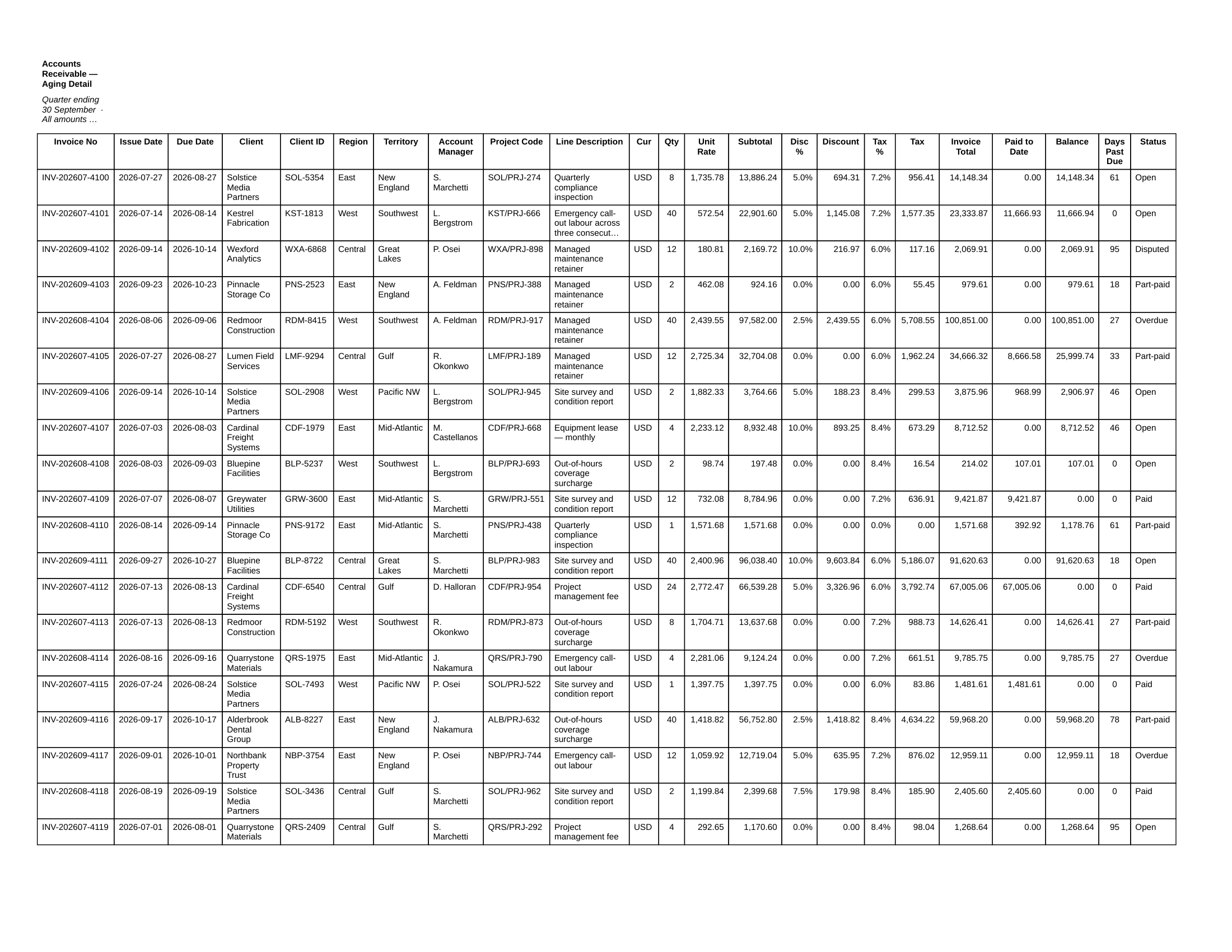
Excel · Save as PDF · page 1 of 24
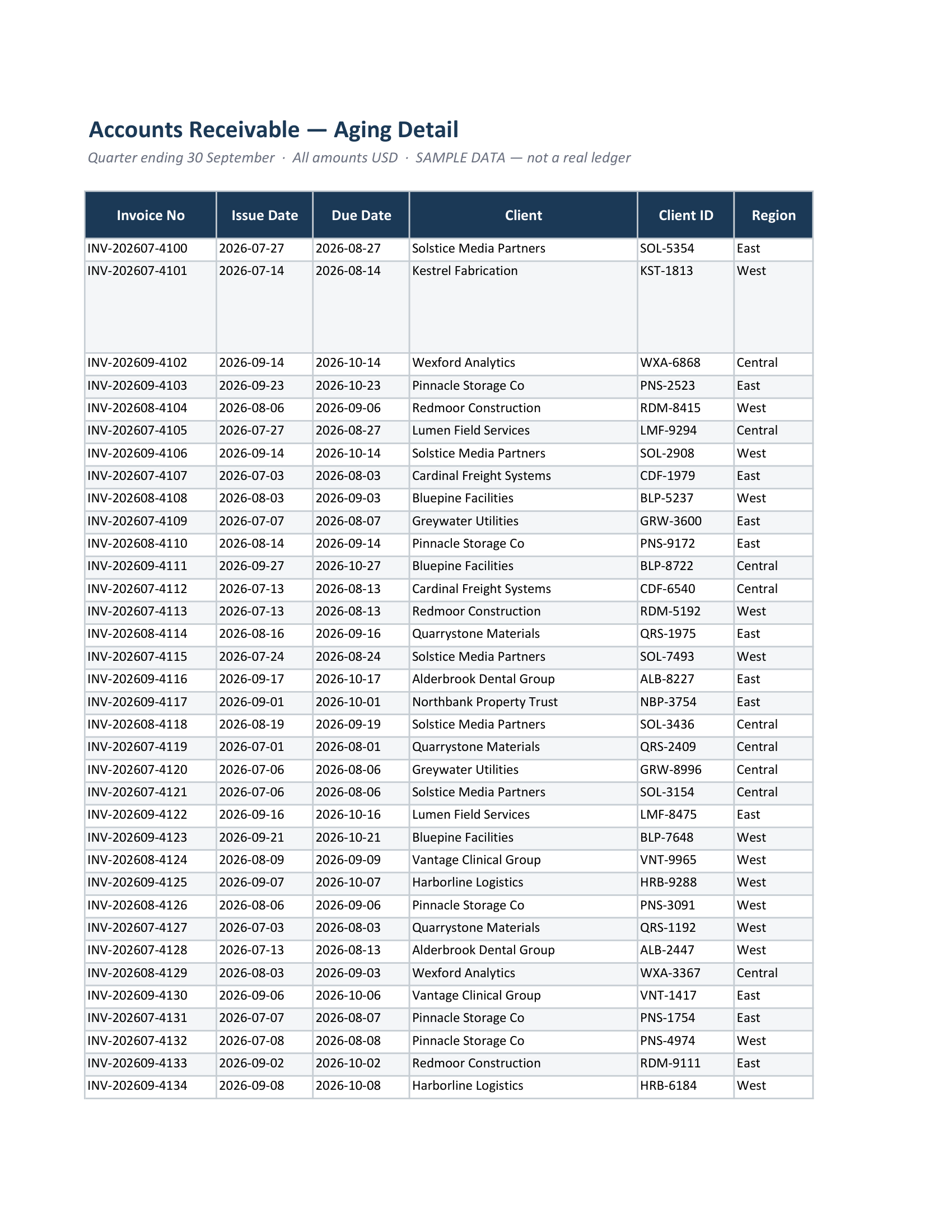
Same file, re-laid-out · page 1 of 10
The five failures, and the fix for each
1. Columns cut off at the right edge. Excel prints at the width your sheet is set to; anything past the margin goes onto its own strip of pages further back. Fix: Landscape, narrow margins, and Scale to Fit width of one page — or a renderer that measures the real column widths. → full fix
2. A row sliced across a page break. Excel fills each page by height and cuts at the margin, so a tall row that straddles the line is split: label on one page, number on the next. Fix: adjust row heights or insert manual breaks — or use pagination that treats a row as indivisible. → full fix
3. Text shrunk to unreadable. “Fit Sheet on One Page” forces both width and height, so a large sheet is scaled down until nobody can read it. Fix: set width only and leave height automatic. → full fix
4. Blank or near-blank pages. Excel thinks the sheet is bigger than it looks, usually because formatting or cleared cells stretched the used range. Fix: clear the phantom range and reset the page breaks. → full fix
5. Data that never made it in. A print area set months ago still applies, and the columns or rows added since sit outside it. Excel prints the print area, so that data is simply absent — and nothing tells you. → full fix
The setting checklist, in order
- Page Layout → Orientation: Landscape for anything wide.
- Page Layout → Margins → Narrow: free width costs nothing.
- Scale to Fit → Width: 1 page, Height: Automatic. Never force both.
- Print Titles → Rows to repeat at top: the header on every page.
- Print Area: clear it, or reset it to the range that exists today.
- Page Break Preview: look at the blue lines before you export, not after.
When the settings are not the answer
Past roughly fifteen columns, no combination of these keeps a sheet both complete and readable on one page — you are choosing which failure to have. That is the point where the export needs a different kind of engine: one that measures the real column widths, picks the orientation from the sheet rather than the page setup, keeps every row whole, and slices a too-wide table across pages with the label column repeated instead of crushing it.
CrazySmartPDF does that, renders the sheet’s full data range rather than only what a print area covers, and flags any page that still came out blank or clipped so you see it before your reader does — it flags, it does not rewrite your file. The free web tool takes a single file in any browser; the offline apps, with the folder batch, need Windows with Excel 2016+. Both are free to run on your own files. See how it works.
FAQ
Why does my Excel formatting change when I save as PDF? It usually has not changed. The colours, fonts and borders are intact; what changed is which cells landed on which page. Excel paginates against your page setup and the current printer driver, so the same file can paginate differently on another machine.
How do I keep the layout exactly as it looks on screen? You cannot, and that is worth knowing early: the screen has no page edges. The closest you get is deciding the paper shape deliberately — landscape, fit-to-width, repeated header rows — or handing the sheet to a renderer that lays it out for paper rather than reproducing your print settings.
Does converting to PDF reduce image quality? Only if Excel’s automatic picture compression is on. Turn it off under File → Options → Advanced and set image size and quality to high fidelity before exporting.
Is there a way to check the PDF before I send it? Look for the five failures: last column present, no row split across a break, text readable, no stray blank pages, nothing missing that sat outside the print area. A self-checking export flags the blank and clipped pages for you; the other three need thirty seconds of your own eyes.