
Answers Excel → PDF
Why does my Excel spreadsheet look wrong when I save it as PDF
Short answer: because Excel’s “Save as PDF” is a print, not a layout. It keeps whatever print settings your sheet already has, so anything that looks wrong on paper — columns cut off, rows split, text shrunk to nothing, data missing, blank pages — carries straight into the PDF. The fix depends on which of those hit you. Here’s how to tell them apart.
Match your symptom to the cause
| What you see | What’s actually happening | Fix |
|---|---|---|
| Columns cut off at the right edge | The sheet is wider than the page; extra columns spill off | Convert without cutting off columns |
| Text shrunk to unreadable | ”Fit Sheet on One Page” scaled the whole sheet down | Save as PDF without shrinking text |
| A row split across a page break | Excel paginates by height, slicing tall rows | Stop rows splitting across pages |
| Data missing entirely | A print area is set and clamps everything outside it | Keep the print area from dropping data |
| Blank or half-empty pages | A stray cell far out in the sheet inflates the print range | Catch blank or clipped pages |
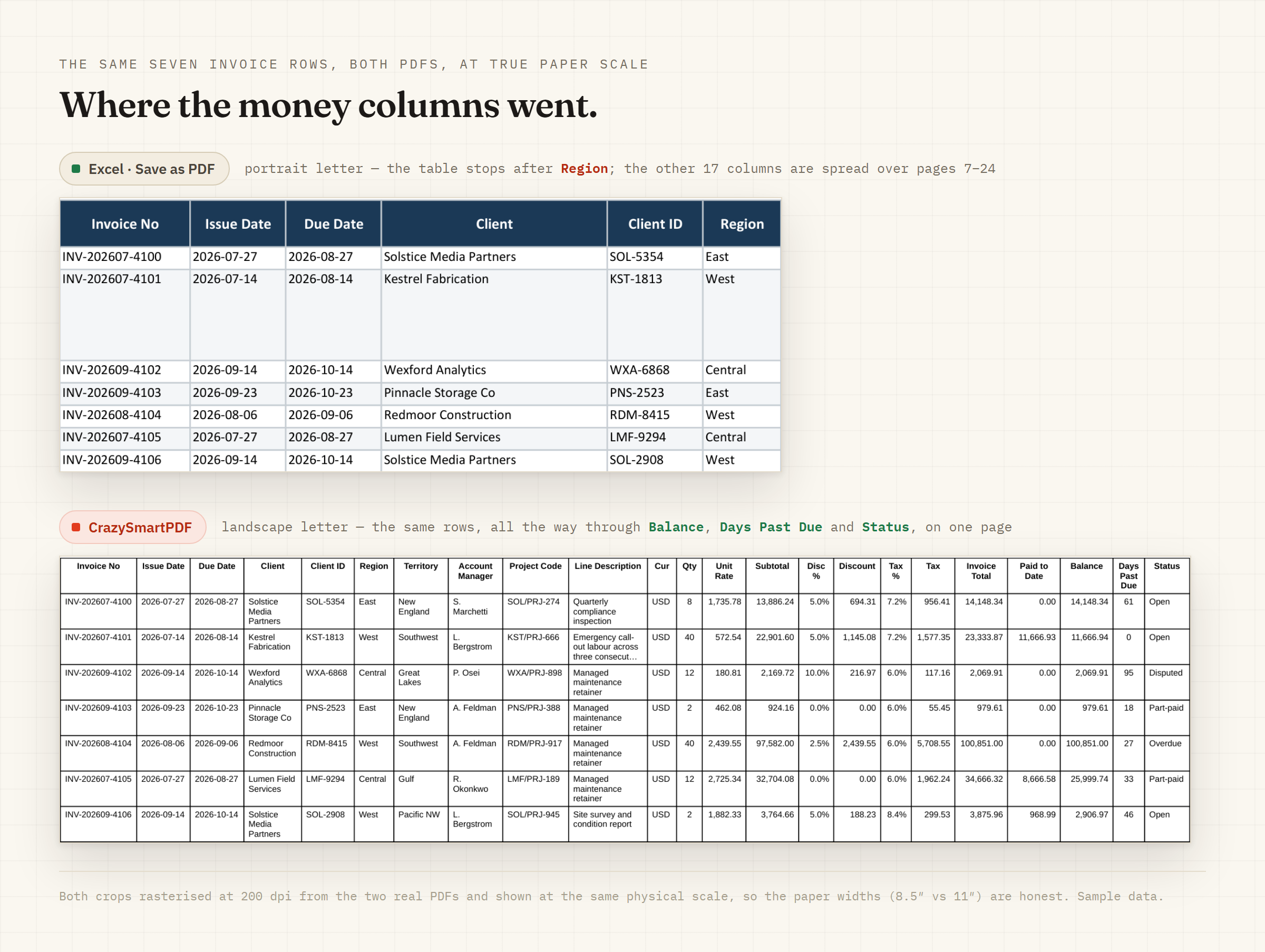
Most “my PDF looks wrong” reports are one or two of these at once. The reason it feels endless is that fixing one (turn off scaling) often reveals another (now columns cut off) — Excel makes you trade the problems off by hand, on every file. For the reason all of these trace back to one thing, see Print, not layout: why Save as PDF breaks spreadsheets.
How CrazySmartPDF handles it
It replaces the print with a layout pass. It re-lays-out each sheet so wide columns are fitted or sliced across pages rather than clipped and rows stay whole, renders your full used range rather than cutting to a print area — so a stale or narrow print area doesn’t silently drop data, and the desktop app’s pre-send review shows you when it pulled in content from beyond one — and then checks its own output by rasterising every page and writing a health report that notes blanks and clipped edges (including any residual clip). The idea is to do the fiddly layout work you’d otherwise repeat on every file, and to surface problems rather than fail silently.
The honest caveats
The full re-layout-and-self-check runs on Windows and needs Excel installed (2016 or newer) — no Mac build. (A free web converter on the home page runs the same smart engine on our server — your file is converted, then deleted, never stored — and lays out row-atomic, but the self-check here is the native app’s.) The self-check flags suspect pages for a human to verify; it doesn’t auto-fix them. And it never modifies your original workbook.